Privileges App on macOS
ASU’s security policies mandate that all computer accounts should use the “least privileged ability” during regular use. Engineering Technical Services recognizes that there are legitimate needs for short periods of temporary administrator access for some Fulton Schools of Engineering (FSE) employees and provides a tool for this purpose. The Privileges application is meant to provide the ability for FSE employees to temporarily elevate their accounts on macOS systems to have administrator rights for the rare times this is needed.
Using Windows? See the Elevate Admin guide for temporary administrator access on an ETS-managed Windows computer.
Please be aware that this will not allow bypassing of security settings, such as prohibiting unsigned installers, and is not meant to be used to install applications not present in the JAMF Self-Service. If an application (including restricted license apps) is needed, then please contact your local Deskside I.T. team so it may be added to JAMF and then made available to the intended audience through proper channels.
When the need for administrator rights has concluded, the elevated access must be removed immediately after by use of the Privileges App again.
Some departments choose to have the Privileges App pre-installed on their macOS systems. If not, you will need to install the Privileges App, but this only needs to be done once.
Installing Privileges
- Click on Self Service

- Scroll down to locate Privileges and click Install
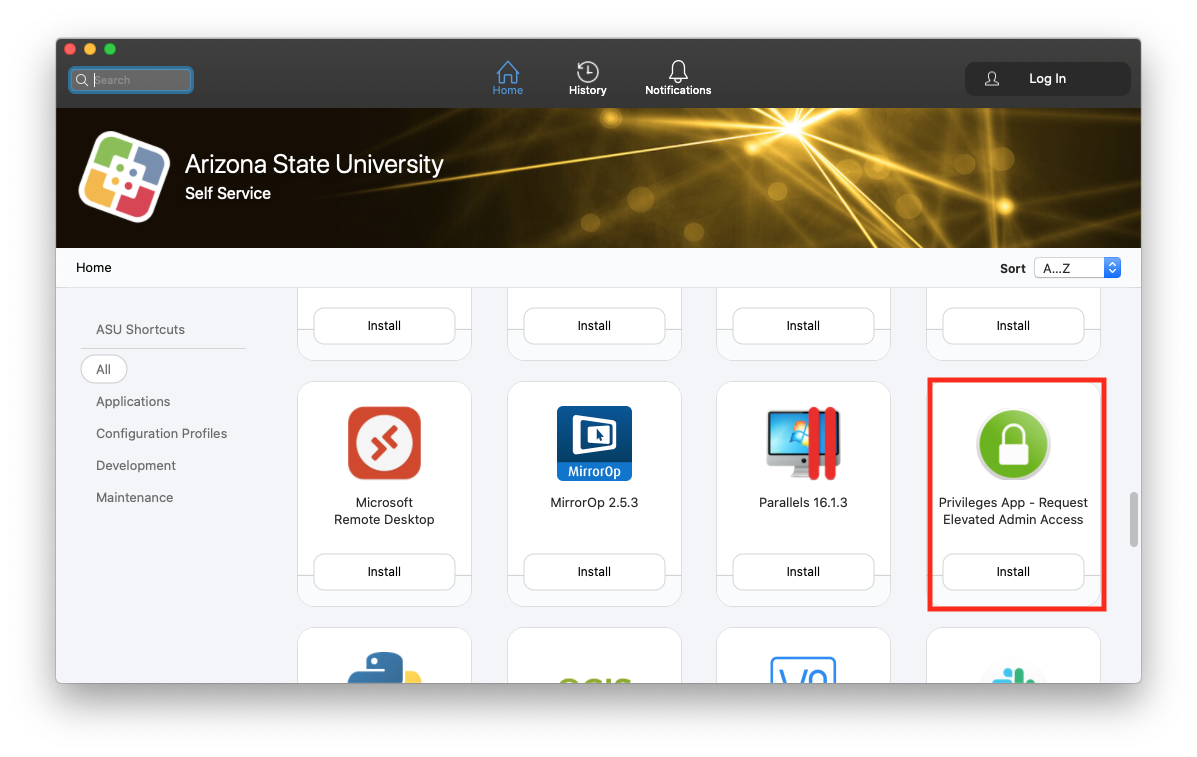
- You may close Self Service when this is complete
Using Privileges to temporarily elevate your account rights
Using Privileges to temporarily elevate your account rights
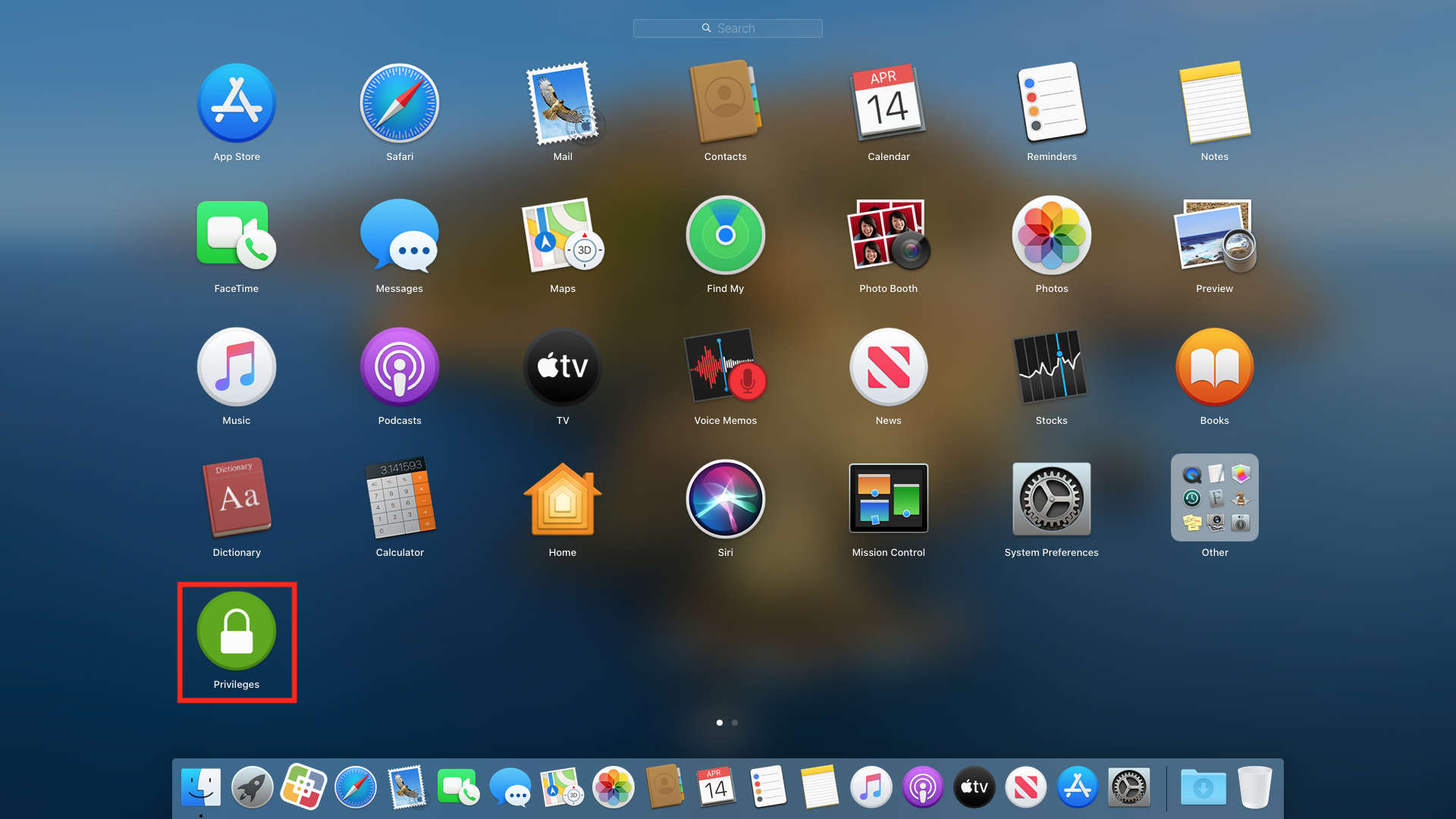
- Click on Launch Pad (macOS 15 and before) or Apps (macOS 26 and higher)

- Locate the Privileges icon and click Privileges
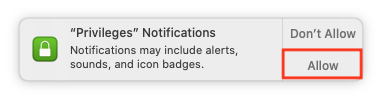
- If asked about Privileges notifications, click Allow
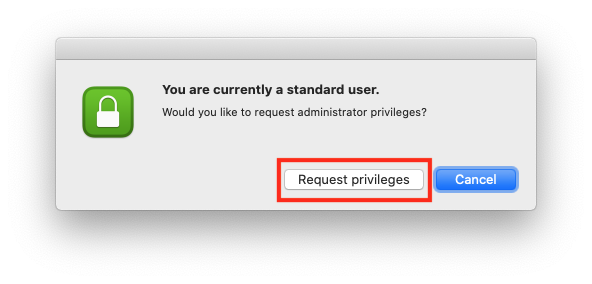
- Click Request Privileges
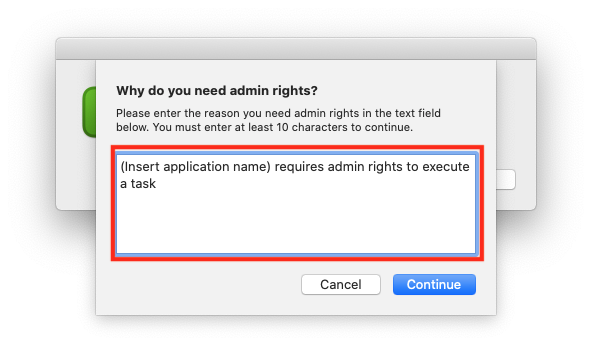
- Enter the justification for elevating to administrator rights, this will be logged and reviewed by your deskside I.T. team
Appropriate Justification
The justification entered must be a detailed entry outlining the following things:
- What application, feature, or task is requiring the administrative rights
- What specific activity is being done
- It may outline multiple activities as long as each one is fully detailed
Good Examples:
- Slack app requires admin rights to install a helper
- Discord requires admin rights to install an update patch
- I need to manually add a non-FSE administered network printer (printer name)
Incomplete Examples:
- Need admin
- Software Updates
- Testing
All Privileges request justifications are immediately sent to your Deskside I.T. team for record keeping and review. And to reiterate: Using this ability to install software is strictly prohibited. Speak to your deskside I.T. team for all software needs to make sure you adhere to ASU, legal, and terms of use requirements.
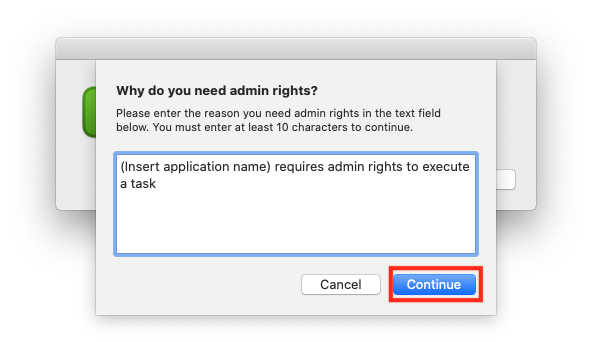
- Click Continue
- Enter your Macintosh password
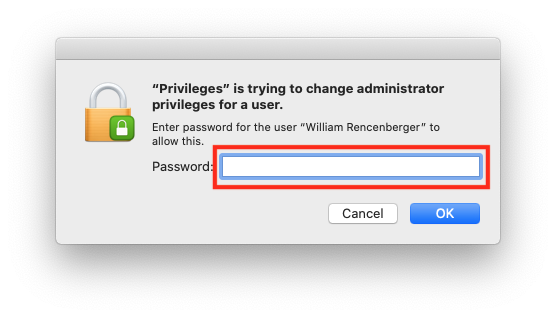
- Click OK
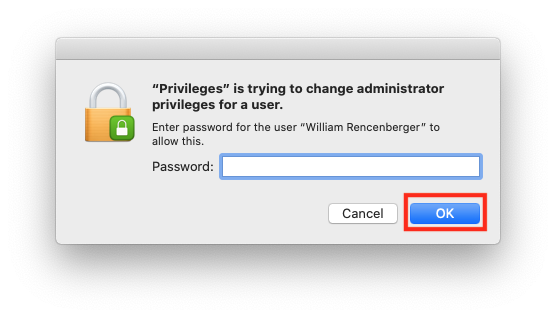
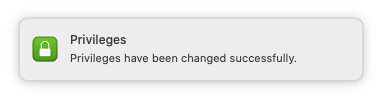
- You will see an alert that your account rights have now been changed
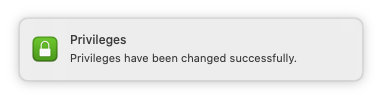
Removing your elevated account rights when the task is concluded
- Click on Launch Pad (macOS 15 and before) or Apps (macOS 26 and higher)

- Locate the Privileges icon (now orange) and click Privileges
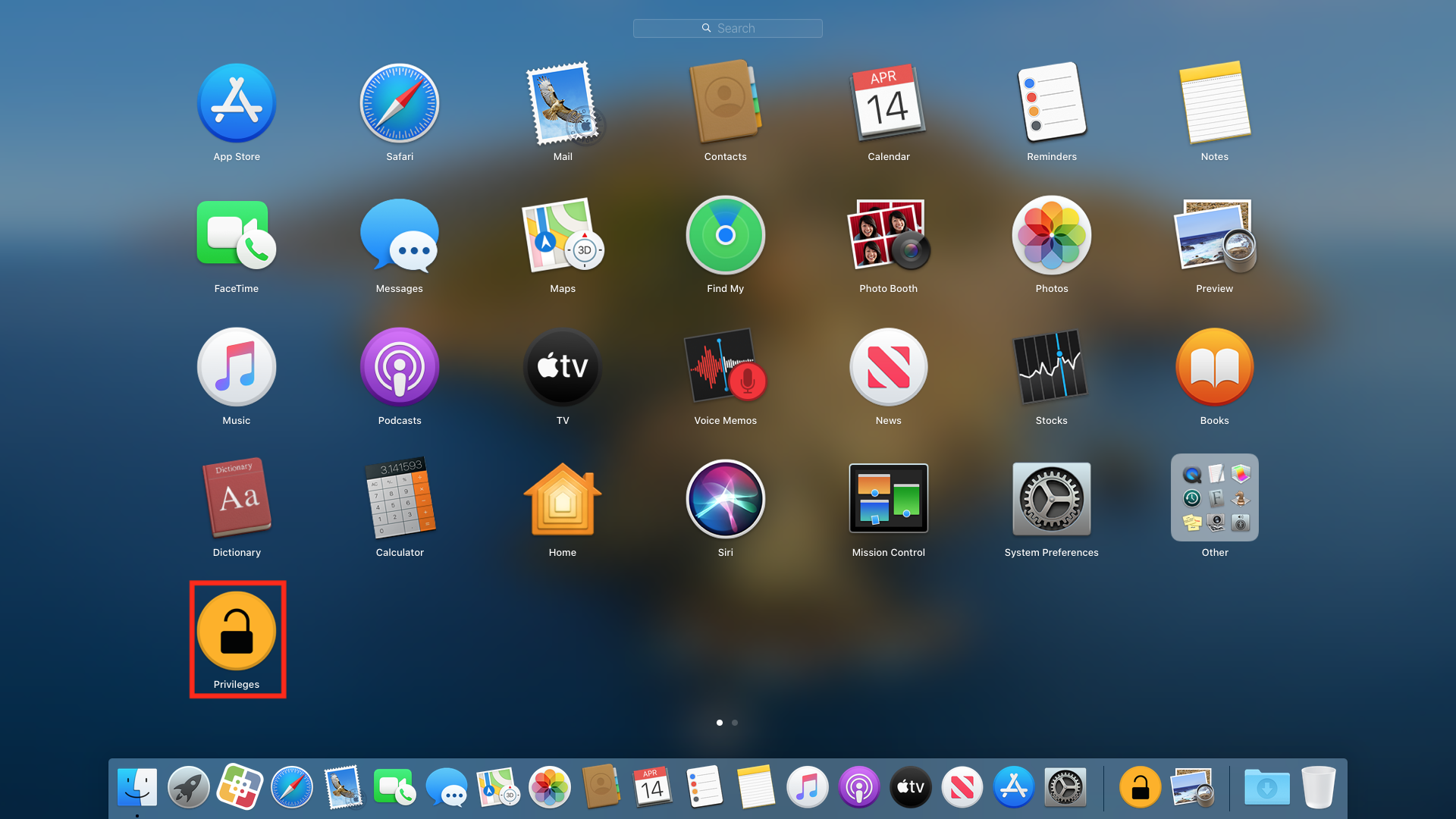
- Click Remove Privileges
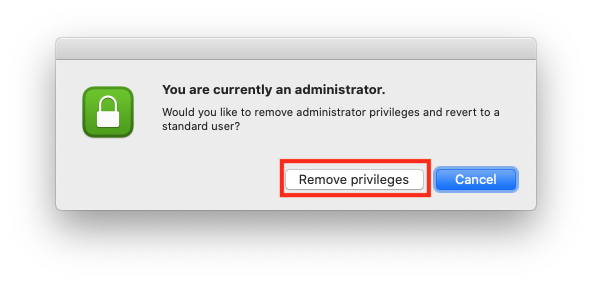
- You will see an alert that your account rights have now been changed